
OroCommerce
Connect your OroCommerce store to Kenzi to add a live chat widget to your storefront and automatically sync order data so your support team has full context when helping customers.
What You’ll Need
Section titled “What You’ll Need”- A Kenzi account — sign up at kenzi.chat if you don’t have one yet
- OroCommerce 6.0 or later (Community Edition or Enterprise Edition)
- Admin access to your OroCommerce back-office
Install the Bundle
Section titled “Install the Bundle”Run these commands from your OroCommerce application root:
composer require kenzi-chat/orocommerce-bundlephp bin/console cache:clearphp bin/console oro:platform:update --forceThe bundle registers itself automatically — no additional configuration files to edit.
After installation, a new Kenzi Chat section will appear in your OroCommerce system configuration.
Connect to Kenzi
Section titled “Connect to Kenzi”Connecting links your OroCommerce store to your Kenzi workspace so order data and chat messages flow between them.
-
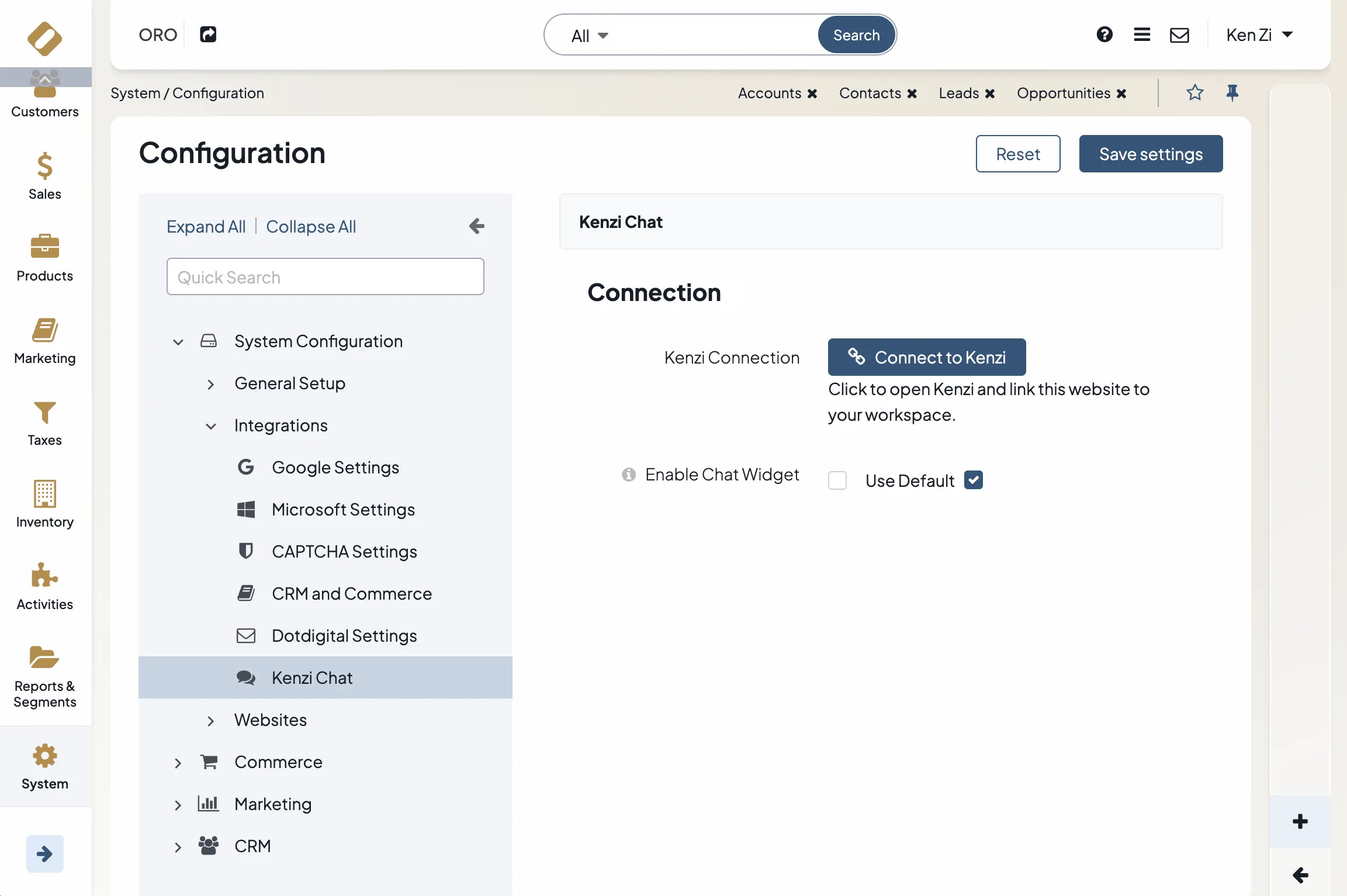
In your OroCommerce back-office, go to System > Configuration.
-
In the left sidebar, expand Integrations and click Kenzi Chat.
-
Click the Connect to Kenzi button.
-
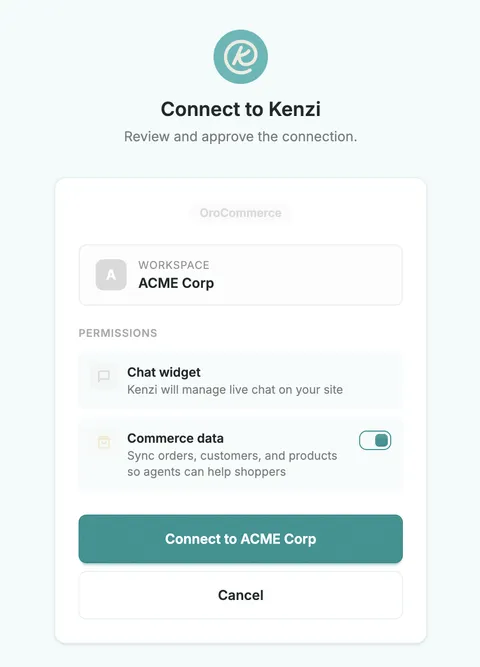
A popup will open. If you’re not already signed in to Kenzi, sign in with Google.
-
Select the workspace you want to connect to. If you only have one workspace, it will be selected automatically.
-
Review the connection details and click Connect.
-
The popup closes and the page reloads. You’ll see a green Connected to Kenzi status showing your workspace and the date you connected.
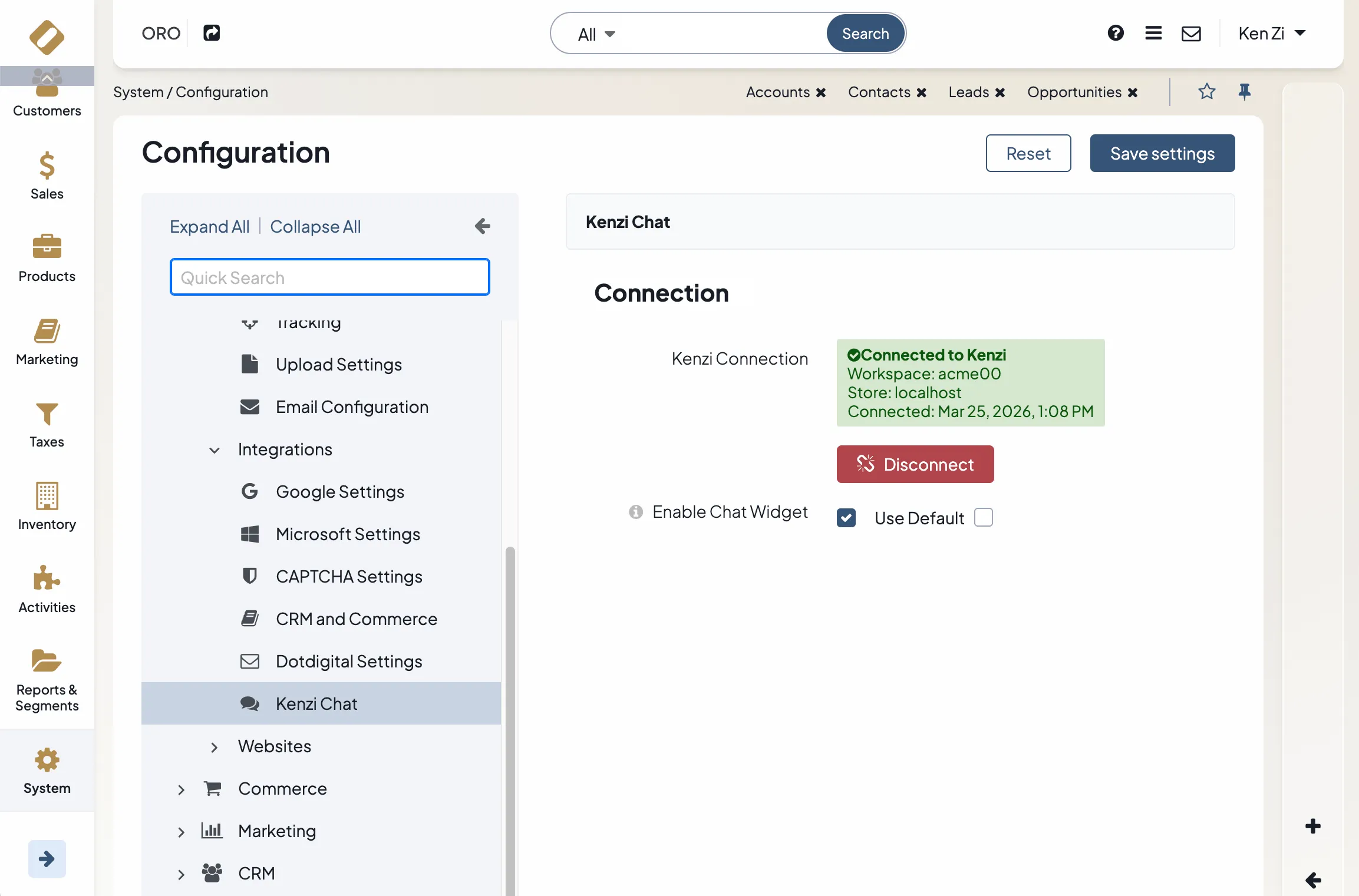
Once connected, Kenzi automatically begins syncing order data in the background.
Enable the Chat Widget
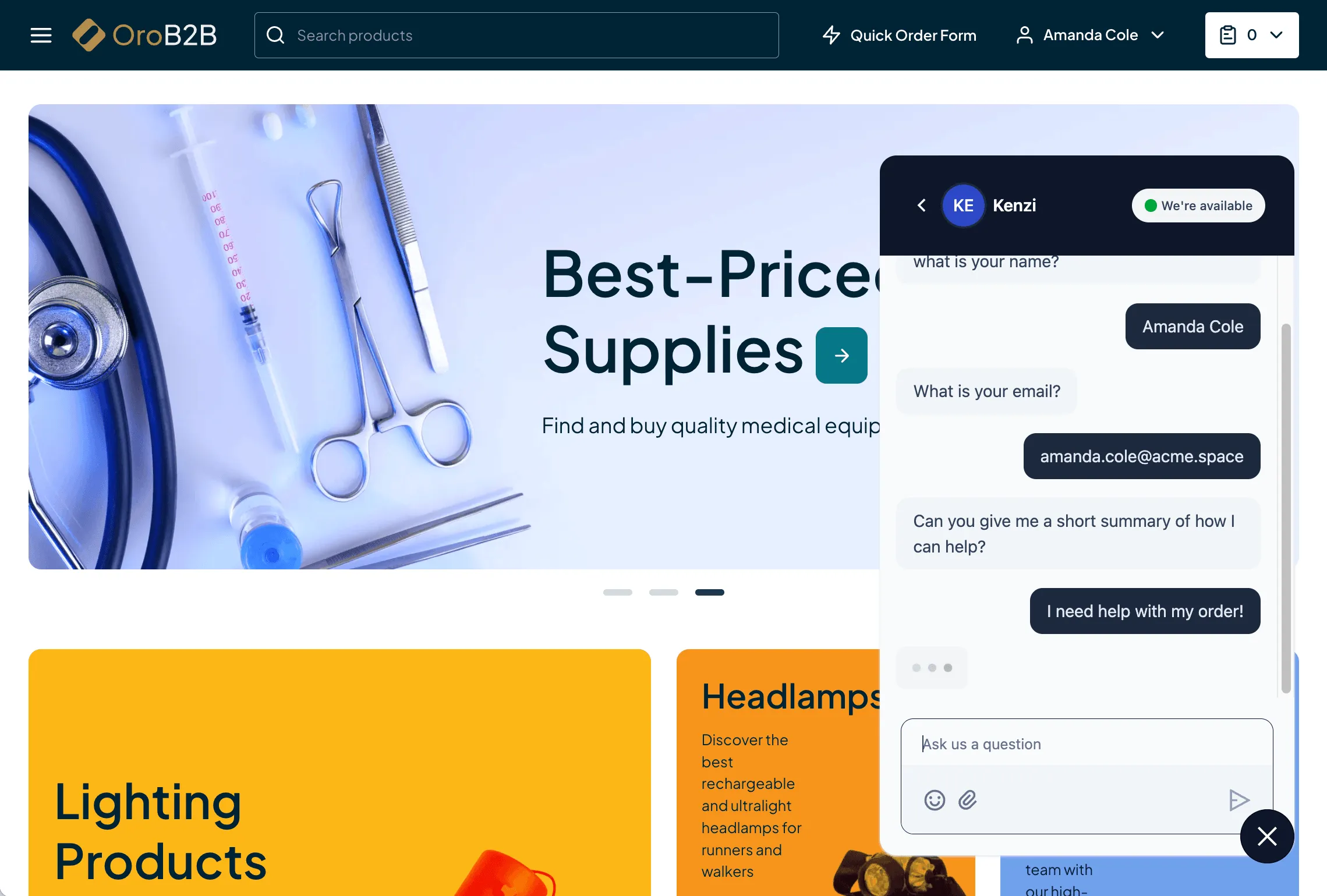
Section titled “Enable the Chat Widget”The chat widget is a small chat window that appears on your storefront so customers can message your support team.
- On the Kenzi Chat configuration page, check the Enable Chat Widget box.
- Click Save Settings.
The widget will now appear on your storefront pages. When your team is online in Kenzi, customers can start a live conversation. When no one is online, the widget offers an email option so customers can still reach you.
What Gets Synced
Section titled “What Gets Synced”Once connected, Kenzi pulls in order data and stays up to date as new orders come in:
| Data | Details |
|---|---|
| Orders | Order number, status, total, shipping method, and dates |
| Customers | Customer name, email, and company from the order |
| Products | Product names, SKUs, quantities, and prices from each order |
New and updated orders are sent to Kenzi automatically — there’s nothing you need to do to keep things in sync.
How It Looks in Kenzi
Section titled “How It Looks in Kenzi”When a customer reaches out through any channel — chat, email, Facebook, or Instagram — Kenzi automatically matches them to their order history using their email address. Your support agents will see a Recent Orders section in the conversation sidebar with:
- The order status shown as a color-coded badge
- The products in the order
- The order total
- A link to open the full order in your OroCommerce back-office
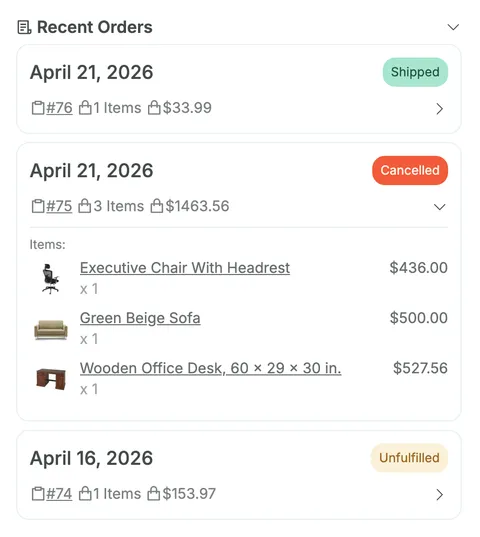
This gives your team instant context so they can help customers faster.
Multi-Website Setup (Enterprise Edition)
Section titled “Multi-Website Setup (Enterprise Edition)”If you’re running OroCommerce Enterprise Edition with multiple websites, each website can have its own independent Kenzi connection. This means each storefront can connect to a different Kenzi workspace and have its own chat widget.
To configure Kenzi for a specific website:
- Go to System > Websites and click the website you want to configure.
- Click Configuration in the top right.
- In the left sidebar, expand Kenzi Chat and click Connection.
- Click Connect to Kenzi and follow the same connection steps as above.
Repeat for each website you want to connect.
Disconnect
Section titled “Disconnect”If you need to remove the connection between your OroCommerce store and Kenzi:
- Go to System > Configuration > Integrations > Kenzi Chat.
- Click the Disconnect button.
- Confirm when prompted.
The chat widget will stop appearing on your storefront and order data will no longer sync to Kenzi. You can reconnect at any time by clicking Connect to Kenzi again.
Troubleshooting
Section titled “Troubleshooting””Unable to create OAuth credentials” warning
Section titled “”Unable to create OAuth credentials” warning”When you try to connect to Kenzi, the connection may fail and show this flash message:
Unable to create OAuth credentials. The server’s OAuth2 encryption keys have not been generated.
This means your OroCommerce server is missing the encryption keys that the Kenzi connection needs. To fix it, run this command from your OroCommerce application root:
php bin/console oro:oauth-server:generate-keysAfter running the command, go back to the Kenzi Chat configuration page and try connecting again.